
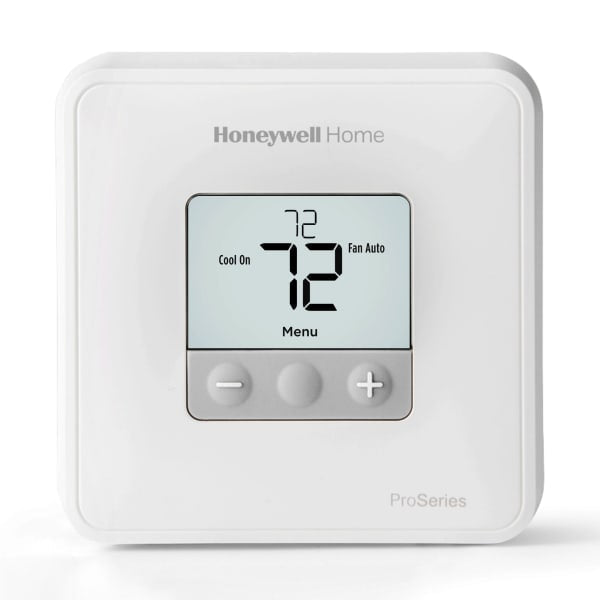
A frozen screen, a heating or cooling system that won't respond, a schedule that keeps overriding your settings, or a Wi-Fi thermostat that lost its connection: a reset often fixes all of these. Honeywell Home thermostats (now made by Resideo) come in many model families, and the reset steps vary from one model to the next. This guide explains the different types of reset, how they generally work for each major Honeywell model family, and what to check before and after you reset.
Important: Exact button steps and menu names depend on your specific model and software version. Use this guide to understand your options, then confirm the steps in your model's user manual. You'll usually find the manual on the Honeywell Home / Resideo website by searching your model number.
First, find your model number
The reset steps depend on the model, so identify it first:
- On the thermostat: Many models show the model number on a label on the back of the thermostat or on the wallplate. Gently pull the thermostat straight off the wallplate to look. Some models also show it in the menu under device information.
- In the app: Wi-Fi models connected to the Honeywell Home or Resideo app usually list the model in the device settings.
- Original packaging or manual, if you still have them.
Common model families include the T-series (such as T4, T5, T6, T9 and T10), the RTH series (basic, programmable and Wi-Fi models), FocusPRO and VisionPRO (often installed by HVAC contractors), and Lyric smart thermostats.
Types of thermostat reset
"Reset" can mean different things. Start with the gentlest option and work up:
| Reset type | What it does | When to use it |
|---|---|---|
| Soft reset (restart / power cycle) | Restarts the thermostat. Your settings are usually kept. | Frozen or blank screen, unresponsive buttons, minor glitches |
| Schedule reset | Returns the program schedule to its default settings | Temperatures change unexpectedly, or a schedule you can't figure out |
| Wi-Fi / network reset | Clears the saved Wi-Fi network so you can reconnect | New router, changed Wi-Fi password, offline in the app |
| Factory reset | Returns the thermostat to out-of-box defaults, often including installer settings | Selling your home, persistent problems, starting setup over |
Before a factory reset, write down or photograph your installer settings (system type, heat pump settings, stages of heat and cool). A factory reset can erase them, and your system may not run correctly until they're set up again.
How to do a soft reset (most models)
A power cycle works on almost every thermostat and is the safest first step:
- Battery-powered models: Remove the batteries, wait about a minute, and reinstall fresh batteries. Many Honeywell models use AA or AAA alkaline batteries, but check the battery compartment for the correct type and orientation. Weak batteries are one of the most common causes of a blank or erratic display.
- Wall-powered models (C-wire): Gently pull the thermostat off its wallplate, wait about 30 to 60 seconds, and push it back on firmly. Alternatively, turn off the breaker for your furnace or air handler for a minute, then turn it back on.
After a restart, give the system a few minutes. Many thermostats and outdoor units have a built-in compressor protection delay, so cooling (and heat pump heating) may not start right away.
Resetting by model family
Basic non-programmable models
Simple digital thermostats usually don't store much beyond your setpoint and a few installer options. A soft reset (new batteries, or removing and reattaching the thermostat) is usually all you need. Some models have an installer option to restore defaults. Your manual will list it if yours does.
Programmable models (RTH and T-series)
Programmable thermostats store a weekly schedule. If temperatures keep changing on their own, the schedule is usually the reason, not a fault. Most programmable models let you edit the schedule, turn it off or return it to the default program from the menu or the schedule settings. Some models also offer a full factory default option in the installer settings. Check your manual for the exact path.
Wi-Fi and smart models (T-series, RTH Wi-Fi and Lyric)
Wi-Fi models usually have more reset options, typically found in the thermostat's Menu or Settings, under a heading such as Reset, Wi-Fi or Device. Depending on the model, you may see separate options to reset the Wi-Fi connection, reset the schedule or perform a full factory reset. Some features can also be managed in the Honeywell Home or Resideo app.
After a Wi-Fi reset or factory reset, you'll usually need to reconnect the thermostat to your network and, in some cases, remove the old device from the app and add it again. The app guides you through this.
Tip: If you changed routers, make sure your thermostat supports your Wi-Fi band. Many smart thermostats only connect to 2.4 GHz networks.
FocusPRO and VisionPRO (contractor models)
These models are commonly installed by HVAC contractors and often have detailed installer settings for the specific equipment in your home. If you factory-reset one of these, those settings may need to be re-entered. Consult the installation guide for your exact model, or call your HVAC contractor, before you reset anything beyond the schedule or a simple power cycle.
When a reset doesn't fix the problem
If the thermostat still isn't working after a reset, the problem may be with the power supply, the wiring or the HVAC equipment itself. Check these:
- Breaker and service switch: Make sure the furnace or air handler breaker hasn't tripped and the service switch near the furnace is on.
- Furnace door switch: Most furnaces won't run if the blower door isn't fully closed.
- Condensate safety switch: On many AC systems, a full drain pan or clogged condensate line trips a safety switch that shuts the system off.
- Blank screen on a C-wire model: The thermostat may not be getting 24V power. This could be a loose wire, a blown fuse on the furnace control board, or a failed transformer. These checks are best left to an HVAC technician.
- Error codes: Many Honeywell models display codes or alerts. Look them up in your manual for the specific meaning.
- Old thermostat: If yours is 10 to 15 years old or more, or the display is failing, replacement may make more sense than repeated resets.
Safety notes
- Turn off power at the breaker before you touch any thermostat wiring or remove the wallplate.
- Don't open the furnace or air handler cabinet or touch the control board unless you're qualified. These contain line voltage and, on gas furnaces, gas controls.
- If you have a heat pump or a line-voltage system, or you're unsure about the installer settings, contact a licensed HVAC professional.
Thinking about an upgrade?
If resetting doesn't solve the problem, or you want features like app control and remote sensors, browse our smart thermostats and programmable thermostats, or shop all Honeywell Home products. Installing a new one yourself? Our thermostat wiring guide for beginners walks you through it.